السبت، 22 يناير 2011

Sign in to multiple Google Accounts

Google tests a feature that allows you to sign in to multiple Google accounts in the same browser. Multiple sign-in only works for Gmail, Google Calendar, Google Reader, Google Docs, Google Sites and Google Code, but it’s likely that other Google services will be added when this feature will be publicly available.
If you use a service that doesn’t support multiple sign-in, it will default to the first account that you signed in using your browser. Google suggests to use a different browser, but you can also use Chrome’s incognito mode to sign in to an additional Google account.
Another limitation is that Gmail’s offline mode is disabled if you turn on multiple sign-in.
Multiple sign-in will let you open Gmail in multiple tabs, log in using different accounts and read the messages from all your accounts without opening another browser. Right now, you have to log out before logging in to a different account. Source

Run Your Computer Faster


Tips from Microsoft to Run Your Computer Faster

In this article we will show you how to make your System run faster.
Disk Cleanup:
  • Go to Start > All Programs > Accessories > System Tools > Disk Cleanup
  • Select the drive you want to clean up and press OK
  • After the cleanup process, select the checkboxes of files you want to delete and press OK
  • When prompted for confirmation, press Yes

Disk Defragment:
  • Go to Start > All Programs > Accessories > System Tools > Disk Defragment
  • Select the drive or drives and press “Analyze Disk”
  • If analyze results show that you need to defragment the drive then select the drive or drives and press “Defragment Disk”
  • After the completion of process, close the defragment window

Disk Error Checking:
  • Go to Start > My Computer
  • Right click on your desired Hard Disk
  • Select Properties
  • Click on Tools tab
  • Press “Check Now” button
  • Select “Scan for and attempt recovery if bad Sectors” and press “Start”
  • Select “Automatically fix file system error” only if you think the drive contains bad sectors

Spyware Remover:
  • Install any good spyware remover to protect your computer and keep it updated
ReadyBoost Utility:
  • It is a great utility that improves the performance of your computer by using USB drive or Memory Card storage space

All Google Services

الأربعاء، 19 يناير 2011

Bring Off Screen Window Back Onto Screen


While using Windows XP, I had a window that had somehow fallen completely off of my screen. Right-clicking the window in the Taskbar and selecting Maximize brought it back, but there was no way I could get the window restored to where I could move it around my screen with my mouse.
Luckily, I found an article on how to Bring Misplaced Off-Screen Windows Back to Your Desktop
You just right-click the item in the task-bar and select Move. Then use the arrow keys on your keyboard to move it around. Once you press one of the arrow keys though, your mouse can take it over and you can then easily drag and drop the window back to the screen.
Sometimes the little things escape me. I would’ve probably never thought of these steps. I mean, who ever  uses the Move option?

Add/Remove Programs Doesn’t Work / Programs List is Blank

When you try to use the Add/Remove Programs feature in the Windows XP control panel, you may have a problem because the list of programs or Currently installed programs comes up blank and never appears.
To try to fix this issue, follow these steps:
1. Click Start > Run.
2. Type regsvr32 appwiz.cpl and click OK.
3. Click OK on the dialog box that appears.
Now give Add/Remove Programs a try.

Mouse Buttons Swapped Before Login

I had a strange problem with my computer, and I’m not sure how it got this way. Before I logged into Windows, I couldn’t right-click on any dialog buttons. Everything was switched around and I had to use the left mouse button instead on prompts to reset my password or when the login failed and I had to try again. I could right-click just fine though once I logged into the system.
I checked my Control Panel, and everything was setup normally. It turns out there is a setting in the registry that controls the swapping of the mouse buttons prior to login.
1. XP: Click Start > Run and type regedit.
Vista: Click Start, type regedit and open the Registry Editor.
2. Navigate to HKEY_USERS\.DEFAULT\Control Panel\Mouse and set SwapMouseButtons
Alternately, you can download and run the swapmouse.reg file to import these settings.
Also note, there is a separate registry entry for swapping the mouse buttons per user. That setting would be triggered after the login process.

Previous Versions Tab is Missing


When you try to access the Previous Versions tab that is used with Shadow Copy, it is missing.
To bring it back, follow these steps:
1. XP: Click Start > Run
Vista:
  • Click Start > All Programs > Accessories.
  • Right-click Command Prompt and select Run As Administrator.
2. Type regsvr32 twext.dll and press Enter.
Now give it a try and see if the Previous Versions tab has returned.

Search For Files or Folders is Blank


When I tried using the Search For Files or Folders option in Windows XP, it came up totally blank. Empty! To solve this issue I had to perform the following steps:
1. Click Start > Run.
2. Type regsvr32 jscript.dll wshom.ocx urlmon.dll
Restart the computer, and now the Search Companion option should work.

iPhone 4 Shows Blank Email Previews

A common issue with the iPhone 4 seems to be that it may show blank email previews from time to time. Here’s how to quickly resolve it.
1. Double-press the Home button to bring up the task menu.
2. Tap and hold Mail.
3. Tap the circle to force-quit the Mail app.
4. Double-tap Home again to exit the task menu.
5. Open Mail. The problem with blank email previews should be resolved.

Mitch iPhone 4: Location Icon is Missing

Does the Location icon on your iPhone 4 appear to be missing? Did it seem to just disappear overnight? Try these steps.
1.  Ensure that sure you didn’t accidentally drag the icon to another Home screen or place it into a folder. Swipe back and forth between each screen and check everywhere.
2. If you still can’t find the icon, you may have a parental lock on the app. Open Settings.
3. Touch General.
4. Select Restrictions.
5. Make sure Location is set to On.
If none of these steps worked, you may want to go through Restoring your iPhone 4.

Mitch iPhone 4: Error “Could not activate cellular data network” Fix

Users of the iPhone 4 may experience an error when trying to make a data connection.
Could not activate cellular data network
This error is common after traveling for some reason. It could be occurring because you have a poor connection to the wireless network, but it’s more likely that the iPhone 4 just needs it’s settings recalibrated. Instead of trying to figure out the specifics, it’s often best to simply reset the network settings using these steps.
1. Open Settings.
2. Tap General.
3. Select Reset.
4. Choose Reset Network Settings.
5. Restart the iPhone 4.
Most of the time, these steps will fix this error.

iPhone App Won’t Open Or Delete

Do you have an iPhone app stuck on your Home screen that won’t open or delete? You press and hold it, but an X doesn’t appear where you can remove it? When this happens, the app is not fully downloaded and is stuck in a sort of limbo.
To resolve this issue, reset the iPhone by pressing and holding the Home and Power buttons for about 15 seconds. The device should then restart and complete the installation of the app. This will allow you to then use the app or uninstall it as normal.

Mitch Upgrade iPhone to iOS 4.2


If you own an iPhone 3GS, 3G or iPhone 4, your device is qualified for an upgrade to iOS 4.2. The new OS has a ton of new features:
  • AirPlay – Stream music or video.
  • AirPrint – Print over Wi-Fi. No need for drivers.
  • Find My iPhone – MobileMe users will have the ability to find their phone.
  • Game Center – New interface for finding a friend to play games with.
  • Tunes TV – Rent commercial free TV shows.
  • Better Mail – Access several email accounts from one inbox.
Also notable is the ability to search text on web pages, reply to calendar invitations and use more fonts in Notes.
There are 2 ways to upgrade.
Option 1 – Upgrade iPhone to iOS 4.2 via automatic iTunes download
1. Download and install the latest version of iTunes if you haven’t already.
2. Attach the iPhone to the computer.
3. On the left side, under Devices, select your iPhone.
4. Under the Summary tab, click the Check for Update option.
5. Click the Download and Install button when prompted.
Option 2 – Upgrade iPhone to iOS 4.2 with firmware installer
Note: This option will reload the firmware of your iPhone and all data will be erased from the device. You can always sync the device after these steps to get most of your data back. Perform these steps at your own risk.

1. Download the correct firmware for your device:
iPhone 3G IPSW Firmware File
iPhone 3GS IPSW Firmware File
iPhone 4 IPSW Firmware File
2. Launch iTunes. Be sure it’s the latest version.
3. Select the iPhone listed under Devices on the left side.
4. Windows users can hold Shift and click the Check for Update button. Mac users can hold Command and click Check for Updates.
5. Browse to and select the file you downloaded above.
You have completed the steps to upgrade iPhone to iOS 4.2. When the phone restarts, you’ll be able to enjoy all the new features.

Clear the Java Web Start Cache using a command line

Clear the Java Web Start Cache using a command line in Windows XP.
1. Hold down the Windows key and press R or go to Start > Run.
2. Type javaws -uninstall and click OK.
The cache will then be cleared.

Remove services that you don’t want in Windows 7, Vista or XP


Remove services that you don’t want in Windows 7, Vista or XP.
1. Hold down the Windows Key and press R.
2. Type regedit and click OK.
3. Expand HKEY_LOCAL_MACHINE
then System
then CurrentControlSet
then Services
4. There are folders under Services that contain each service. The DisplayName values in each of these folders equals the Service Name. Go through the list or use Edit > Find to search for the service you wish to remove.
You can also remove services using a command line. Hold down the Windows Key and press R and type:
SC DELETE servicename
Where servicename = the exact name of the service.

Shut Down Computer Remotely


You can shut down a Windows computer remotely over a network using commands. This comes in handy for me when I don’t have the energy to go all the way downstairs to shut my desktop computer off. So I use my laptop from the upstairs bedroom to send the following command via Start > Run.
shutdown /m \\computername -f -s
You can also add -t 60 to give tell it to shut down in 60 seconds. You can replace the 60 with the amount of seconds you wish. Perfect for when you’re trying to send the message to your child to wrap it up and go to bed.
As a note, you need to be logged into an account that has administrator rights to the computer you are shutting down.

Enable Administrative Tools Menu

 If you’re an administrator, it might be useful to have Administrative Tools listed under Start > Programs. Items like Active Directory, Event Viewer or Services. Here is how to enable them.  1. Right-click on the Start button.
2. Select Properties.
  3. Click the Customize button.
4. Check the Display Administrative Tools box.
  5. Click OK.

Windows Installer Cleanup


The Windows Installer Cleanup Utility has saved me many times. Applications sometimes leave behind references even after you’ve ran the uninstaller. These references sometimes cause issues when you try to reinstall the app. That’s where this handy utility comes in to remove those references from the filesystem and registry.  The utility still applies many years after it was released and even gets rid of installer references for Microsoft Office 2010. For some unknown reason though, this utility disappeared from Microsoft’s web site. Luckily I salvaged a copy. Enjoy!
Download the Windows Installer Cleanup Utility
Note: If you wish to link to this utility, please link to this page, not the direct file. I appreciate it!

Enable Cursors In Web Page Text

 If you want to be able to select text with the keyboard, or just need a visual for selecting text with the mouse in Firefox for Windows, you can enable Caret Browsing. Simply press the F7 key on your keyboard. Click Yes on the prompt that appears.  To disable Caret Browsing, simply press F7 again. A prompt will not appear when you disable it.

Fix Mitch Firefox Won’t Start After Upgrade

Sometimes, Firefox won’t start after an upgrade to the latest version (3.6 at the time of this writing). Here’s what fixed it.
1. Launch Firefox with extensions off. In Windows, you can do this by going to Start > Run and typing firefox -extoff and clicking OK.
2. Click Tools > Add-ons.
3. Disable some of the addons. You will want to disable a few at a time to determine which one is causing the issue.
Once you have disabled the offending Add-on, Firefox should start up fine and you should be able to enjoy the upgrade.

Prevent Firefox From Hogging RAM While Minimized

You can set Firefox to reduce the amount of RAM or memory it uses while it is minimized with this tweak.
1. Type about:config in the address bar and press Enter.
2. Right-click any area in the window and click New > Boolean.
3. In the box that pops up enter config.trim_on_minimize and press Enter.
4. Select True and press Enter.

الأحد، 16 يناير 2011

A Look at History of Microsoft Windows

Microsoft has put a new article on Windows online website covering the whole history of Windows operating system:
1975–1981: Microsoft boots up
It’s the 1970s. At work, we rely on typewriters. If we need to copy a document, we likely use a mimeograph or carbon paper. Few have heard of microcomputers, but two young computer enthusiasts, Bill Gates and Paul Allen, see that personal computing is a path to the future.
In 1975, Gates and Allen form a partnership called Microsoft. Like most start-ups, Microsoft begins small, but has a huge vision—a computer on every desktop and in every home. During the next years, Microsoft begins to change the ways we work.
The dawn of MS‑DOS
In June 1980, Gates and Allen hire Gates’ former Harvard classmate Steve Ballmer to help run the company. The next month, IBM approaches Microsoft about a project code-named "Chess." In response, Microsoft focuses on a new operating system—the software that manages, or runs, the computer hardware and also serves to bridge the gap between the computer hardware and programs, such as a word processor. It’s the foundation on which computer programs can run. They name their new operating system "MS‑DOS."
When the IBM PC running MS‑DOS ships in 1981, it introduces a whole new language to the general public. Typing “C:” and various cryptic commands gradually becomes part of daily work. People discover the backslash (\) key.
Geek trivia: MS‑DOS stands for Microsoft Disk Operating System.
1982–1985: Introducing Windows 1.0
Microsoft works on the first version of a new operating system. Interface Manager is the code name and is considered as the final name, but Windows prevails because it best describes the boxes or computing “windows” that are fundamental to the new system. Windows is announced in 1983, but it takes a while to develop. Skeptics call it “vaporware.”
On November 20, 1985, two years after the initial announcement, Windows ships Windows 1.0. Now, rather than typing MS‑DOS commands, you just move a mouse to point and click your way through screens, or “windows.” Bill Gates says, “It is unique software designed for the serious PC user…”
There are drop-down menus, scroll bars, icons, and dialog boxes that make programs easier to learn and use. You're able to switch among several programs without having to quit and restart each one. Windows 1.0 ships with several programs, including MS‑DOS file management, Paint, Windows Writer, Notepad, Calculator, and a calendar, card file, and clock to help you manage day-to-day activities. There’s even a game—Reversi.
Geek trivia: Remember floppy disks and kilobytes? Windows 1.0 requires a minimum of 256 kilobytes (KB), two double-sided floppy disk drives, and a graphics adapter card. A hard disk and 512 KB memory is recommended for running multiple programs or when using DOS 3.0 or higher.
1987–1992: Windows 2.0–2.11—More windows, more speed
On December 9, 1987 Microsoft releases Windows 2.0 with desktop icons and expanded memory. With improved graphics support, you can now overlap windows, control the screen layout, and use keyboard shortcuts to speed up your work. Some software developers write their first Windows–based programs for this release.
Windows 2.0 is designed for the Intel 286 processor. When the Intel 386 processor is released, Windows/386 soon follows to take advantage of its extended memory capabilities. Subsequent Windows releases continue to improve the speed, reliability, and usability of the PC.
In 1988, Microsoft becomes the world’s largest PC software company based on sales. Computers are starting to become a part of daily life for some office workers.
Geek trivia: Control Panel makes its first appearance in Windows 2.0.
1990–1994: Windows 3.0–Windows NT—Getting the graphics
On May 22, 1990, Microsoft announces Windows 3.0, followed shortly by Windows 3.1 in 1992, Taken together, they sell 10 million copies in their first 2 years, making this the most widely used Windows operating system yet. The scale of this success causes Microsoft to revise earlier plans. Virtual Memory improves visual graphics. In 1990 Windows starts to look like the versions to come.
Windows now has significantly better performance, advanced graphics with 16 colors, and improved icons. A new wave of 386 PCs helps drive the popularity of Windows 3.0. With full support for the Intel 386 processor, programs run noticeably faster. Program Manager, File Manager, and Print Manager arrive in Windows 3.0.
Windows software is installed with floppy discs bought in large boxes with heavy instruction manuals.
The popularity of Windows 3.0 grows with the release of a new Windows software development kit (SDK), which helps software developers focus more on writing programs and less on writing device drivers.
Windows is increasingly used at work and home and now includes games like Solitaire, Hearts, and Minesweeper. An advertisement: “Now you can use the incredible power of Windows 3.0 to goof off.”
Windows for Workgroups 3.11 adds peer-to-peer workgroup and domain networking support and, for the first time, PCs become an integral part of the emerging client/server computing evolution.
Windows NT
When Windows NT releases on July 27, 1993, Microsoft meets an important milestone: the completion of a project begun in the late 1980s to build an advanced new operating system from scratch. "Windows NT represents nothing less than a fundamental change in the way that companies can address their business computing requirements," Bill Gates says at its release.
Unlike Windows 3.1, however, Windows NT 3.1 is a 32-bit operating system, which makes it a strategic business platform that supports high-end engineering and scientific programs.
Geek trivia: The group that develops Windows NT was originally called the "Portable Systems" team.
1995–2001: Windows 95—the PC comes of age (and don't forget the Internet)
On August 24, 1995, Microsoft releases Windows 95, selling a record-setting 7 million copies in the first five weeks. It’s the most publicized launch Microsoft has ever taken on. Television commercials feature the Rolling Stones singing "Start Me Up" over images of the new Start button. The press release simply begins: “It’s here.”
This is the era of fax/modems, e‑mail, the new online world, and dazzling multimedia games and educational software. Windows 95 has built-in Internet support, dial-up networking, and new Plug and Play capabilities that make it easy to install hardware and software. The 32-bit operating system also offers enhanced multimedia capabilities, more powerful features for mobile computing, and integrated networking.
At the time of the Windows 95 release, the previous Windows and MS‑DOS operating systems are running on about 80 percent of the world’s PCs. Windows 95 is the upgrade to these operating systems. To run Windows 95, you need a PC with a 386DX or higher processor (486 recommended) and at least 4 MB of RAM (8 MB of RAM recommended). Upgrade versions are available for both floppy disk and CD-ROM formats. It’s available in 12 languages.
Windows 95 features the first appearance of the Start menu, taskbar, and minimize, maximize, and close buttons on each window.
Catching the Internet wave
In the early 1990s, tech insiders are talking about the Internet—a network of networks that has the power to connect computers all over the world. In 1995, Bill Gates delivers a memo titled “The Internet Tidal Wave,” and declares the Internet as “the most important development since the advent of the PC.”
In the summer of 1995, the first version of Internet Explorer is released. The browser joins those already vying for space on the World Wide Web.
Geek trivia: In 1996, Microsoft releases Flight Simulator for Windows 95—the first time in its 14-year history that it’s available for Windows.
1998–2000: Windows 98, Windows 2000, Windows Me
Windows 98
Released on June 25, 1998, Windows 98 is the first version of Windows designed specifically for consumers. PCs are common at work and home, and Internet cafes where you can get online are popping up. Windows 98 is described as an operating system that “Works Better, Plays Better.”
With Windows 98, you can find information more easily on your PC as well as the Internet. Other improvements include the ability to open and close programs more quickly, and support for reading DVD discs and universal serial bus (USB) devices. Another first appearance is the Quick Launch bar, which lets you run programs without having to browse the Start menu or look for them on the desktop.
Geek trivia: Windows 98 is the last version based on MS‑DOS.
Windows Me
Designed for home computer use, Windows Me offers numerous music, video, and home networking enhancements and reliability improvements compared to previous versions.
First appearances: System Restore, a feature that can roll back your PC software configuration to a date or time before a problem occurred. Windows Movie Maker provides users with the tools to digitally edit, save, and share home videos. And with Microsoft Windows Media Player 7 technologies, you can find, organize, and play digital media.
Geek trivia: Technically speaking, Windows Me was the last Microsoft operating system to be based on the Windows 95 code base. Microsoft announced that all future operating system products would be based on the Windows NT and Windows 2000 kernel.
Windows 2000 Professional
More than just the upgrade to Windows NT Workstation 4.0, Windows 2000 Professional is designed to replace Windows 95, Windows 98, and Windows NT Workstation 4.0 on all business desktops and laptops. Built on top of the proven Windows NT Workstation 4.0 code base, Windows 2000 adds major improvements in reliability, ease of use, Internet compatibility, and support for mobile computing.
Among other improvements, Windows 2000 Professional simplifies hardware installation by adding support for a wide variety of new Plug and Play hardware, including advanced networking and wireless products, USB devices, IEEE 1394 devices, and infrared devices.
Geek trivia: The nightly stress test performed on Windows 2000 during development is the equivalent of three months of run time on up to 1,500 computers.
2001–2005: Windows XP—Stable, usable, and fast
On October 25, 2001, Windows XP is released with a redesigned look and feel that's centered on usability and a unified Help and Support services center. From the mid-1970s until the release of Windows XP, about 1 billion PCs have been shipped worldwide.
For Microsoft, Windows XP will become one of its best-selling products in the coming years. It’s both fast and stable. Navigating the Start menu, taskbar, and Control Panel are more intuitive. Awareness of computer viruses and hackers increases, but fears are to a certain extent calmed by the online delivery of security updates. Consumers begin to understand warnings about suspicious attachments and viruses. There’s more emphasis on Help and Support.
Windows XP Home Edition offers a clean, simplified visual design that makes frequently used features more accessible. Designed for home use, Windows XP offers such enhancements as the Network Setup Wizard, Windows Media Player, Windows Movie Maker, and enhanced digital photo capabilities.
Windows XP Professional brings the solid foundation of Windows 2000 to the PC desktop, enhancing reliability, security, and performance. With a fresh visual design, Windows XP Professional includes features for business and advanced home computing, including remote desktop support, an encrypting file system, and system restore and advanced networking features. Key enhancements for mobile users include wireless 802.1x networking support, Windows Messenger, and Remote Assistance.
Windows XP has several editions during these years:
Windows XP 64-bit Edition (2001) is the first Microsoft operating system for 64-bit processors designed for working with large amounts of memory and projects such as movie special effects, 3D animations, engineering, and scientific programs.
Windows XP Media Center Edition (2002) is made for home computing and entertainment. You can browse the Internet, watch live television, enjoy digital music and video collections, and watch DVDs.
Windows XP Tablet PC Edition (2002) realizes the vision of pen-based computing. Tablet PCs include a digital pen for handwriting recognition and you can use the mouse or keyboard, too.
Geek trivia: Windows XP is compiled from 45 million lines of code.
2006–2008: Windows Vista—Smart on security
Windows Vista is released in 2006 with the strongest security system yet. User Account Control helps prevent potentially harmful software from making changes to your computer. In Windows Vista Ultimate, BitLocker Drive Encryption provides better data protection for your computer, as laptop sales and security needs increase. Windows Vista also features enhancements to Windows Media Player as more and more people come to see their PCs as central locations for digital media. Here you can watch television, view and send photographs, and edit videos.
Design plays a big role in Windows Vista, and features such as the taskbar and the borders around windows get a brand new look. Search gets new emphasis and helps people find files on their PCs faster. Windows Vista introduces new editions that each have a different mix of features. The redesigned Start button makes its first appearance in Windows Vista.
Geek trivia: More than 1.5 million devices are compatible with Windows Vista at launch.
2009–Today: Windows 7 and counting...
By the late 2000s, the wireless world has arrived. When Windows 7 is released in October 2009, laptops are outselling desktop PCs and it’s common to get online at public wireless hotspots like coffee shops. Wireless networks can be created at the office or at home.
Windows 7 includes many features, such as new ways to work with windows—Snap, Peek, and Shake. Windows Touch makes its debut, enabling you to use your fingers to browse the web, flip through photos, and open files and folders. You can stream music, videos, and photos from your PC to a stereo or TV.
By the fall of 2010, Windows 7 is selling seven copies a second—the fastest-selling operating system in history.
Geek trivia: Windows 7 is evaluated by 8 million beta testers worldwide before it's released.
What's next?
Many laptops no longer have a slot for DVDs and some have solid state drives rather than conventional hard disks. Most everything is streamed, saved on flash drives, or saved in the "Cloud"—an online space for sharing files and storage. Windows Live—free programs and services for photos, movies, instant messaging, e‑mail, and social networking—is seamlessly integrated with Windows so that you can keep in touch from your PC, phone, or the web, extending Windows to the Cloud.
Meanwhile, work is underway for the next version of Windows.
Excellent read!

Permanently Set Process Priority in Windows Task Manager Using Prio

Do you know "Windows" shares the processor time between all running processes based upon their priority? If a process has higher priority, it gets more processor time compared to a process having lower priority.
But we can change process priority using "Windows Task Manager". Open Task Manager by right-clicking on Taskbar and select "Task Manager" or by pressing "Ctrl+Shift+Esc" keys together.
Once you open Task Manager, go to "Processes" tab, right-click on any running process and change the priority using "Set Priority" menu. You'll notice some system processes are set to "High" priority and almost all 3rd party processes are set to "Normal" by default.
Although you can change the priority according to your requirement, but the priority is not set permanently. Once you restart your system, Windows forgets your custom priority and assigns the process default priority.
So how to set a process priority permanent? Don't worry, here is the solution.
"Prio" is a free for personal use utility which solves the problem. It adds a new option "Save Priority" in "Set Priority" menu:
Save_Process_Priority.png
So now you can save the priority permanently.
It works in Windows XP, Vista and 7. It also adds a few extra features as mentioned below:
  • Adds a new tab "Services" which shows the installed processes along with their status
  • Adds another new tab "TCP/IP" which shows all established TCP/IP connections and all open ports
  • Adds a new option "Silent Elevation" which allows you to execute a software with administrative privileges
You can download it using following link:
Download Link
Download Link (64-bit)

Homepage

Image Resizer Powertoy Clone for Windows XP, Vista and 7

"Image Resizer Powertoy Clone" is a free tool to resize one or more images at a time. It has been created after inspiring from Microsoft's official Image Resizer Powertoy for Windows XP.
Since there is no official Image Resizer powertoy for Windows Vista, 7 and all 64-bit Windows OS, "BriceLambson" @ CodePlex decided to create one.
According to Brice, this clone was created to extend support to non-XP and 64-bit versions of Windows (including Windows 7 & Vista).
Using this tool is very simple. Simply right-click on the image(s) which you want to resize and select "Resize Pictures" option.
Image_Resizer_Powertoy_Clone_2.png
It'll ask you to select the new size from the pre-defined size list. You can also define a custom size.
Image_Resizer_Powertoy_Clone.png
Once decided, click on OK button and your image(s) will be resized.
You can download it using following link:
Download Image Resizer Powertoy Clone

System Restore Point Creation / Configuration Disabled by Group Policy or System Administrator


Sometimes when you try to create a System Restore point or want to configure System Restore feature in Windows, you find that the Create and Configure buttons are grayed out and you see following messages:
System Restore Point Creation Disabled by Group Policy
System Restore Point Configuration Disabled by System Administrator
Restore_Point_Creation_Configuratio.png
System_Restore_Disabled_XP.png
It happens when the creation of System Restore point or configuration of System Restore is disabled by system administrator.
To fix this problem, you just need to follow these simple steps:
First Method: Using Group Policy Editor
1. Type gpedit.msc in RUN or Startmenu Searchbox and press Enter. It'll open Group Policy Editor.
2. Now navigate to:
Computer Configuration -> Administrative Templates -> System -> System Restore
3. In right-side pane, make sure both "Turn off Configuration" and "Turn off System Restore" options are set to "Not Configured". If both or any of them is set to "Enabled", double-click on the option and set its value to "Not Configured".
Turn_off_Restore_Point_Group_Policy.png
4. That's it. It'll immediately enable System Restore in your system.
Second Method: Using Registry Editor
1. Type regedit in RUN or Startmenu Searchbox and press Enter. It'll open Registry Editor.
2. Now go to:
HKEY_LOCAL_MACHINE\SOFTWARE\Policies\Microsoft\Windows NT\SystemRestore
3. In right-side pane, if you see any of following 2 DWORD values, delete them:
DisableConfig
DisableSR
Turn_off_Restore_Point_Registry_Edi.png
4. Restart or log off your system and System Restore will be enabled.

Microsoft Download Manager

Microsoft has released a free download manager for Windows.
"Microsoft Download Manager" enables you to download files from the Internet in a more reliable and faster way than using a browser alone. Using the Download Manager makes it easier to download large files such as an application or multimedia files.
The Download Manager has been specifically designed to manage file downloads from supporting Microsoft Web sites in a secure and reliable way. Once started, the Download Manager displays an easy-to-use interface that shows the status of downloads and enables you to resume downloads if they have failed.
Microsoft_Download_Manager.png
Currently it supports downloads from Web addresses starting with http://
It can be used in Windows XP, Vista, Server 2003, Server 2008 and 7.
You can download it using following link:
Download Link
Mirror

Nimi Visuals: Add Various Eye Candy Effects to Windows

Nimi (formerly known as Tophaz) is a small program that adds various window effects that can be adjusted by user. Currently, those are:
Transparency effects, with fading
  • Desktop shadows - turn all windows transparent and click-through when desktop is selected. Holding mouse with button pressed over transparent window activates it again.
  • Window fading in on creation - fade in window on it's creation
  • Contrast screen - creates contrast between active and non-active windows
  • Taskbar and start menu transparency(no fading)
  • Ttransparency on window move and resize
Jelly effects
  • Window kinetics - window will its momentum during move
  • Jelly windows - deform window shape depending on direction of its move in wobbly style
  • Jelly bounce - Makes window bounce on activation
Illusion effects
  • Creation sparkle - creates sparkle on titlebar at window creation
  • Contrastful windows - decrease saturation of non-active windows.
Other
  • Window quiver - minimizes or restore non-active windows on active window quiver movement
  • Window snap - maximizes window to half-width of screen when it's left more than half outside screen
  • Picture wallpaper-board - generate wallpaper filled with random images from User picture folder or Nimi folder in application data folder
  • Picture highlight - generate wallpaper containing one image from User picture folder, highlighted on adapted background
  • Screen frost - cover wallpaper under ice.
It supports Windows XP and Vista and should also work in Windows 2000.
Download Link
More Info

Get Windows 7 Volume Control Box in Windows XP


Windows 7 contains a redesigned Volume Control window which shows better details and graphics for device volumes. Now you can get a similar window in your XP. Thanks to fediaFedia for creating this mod.

Download the required file from following link:
Download Windows 7 Volume Control for XP
Alternative Link
After downloading the ZIP file, extract it and you'll get an EXE file "sndvol32.exe". Now you just need to replace existing "sndvol32.exe" file present in "%windir%\System32" folder (here %windir% represents "Windows" folder present in the system drive where Windows is installed in your system) with this new one.
Make sure you have run WFP Patcher in Windows. WFP Patcher disables WFP (Windows File Protection) service which protects editing/replacing of system files and you'll not be able to replace the file until you disable it using WFP patcher. You can find it in our "Downloads" section.
If you don't want to disable WFP, you can still replace the file using Replacer. This tool can also be found in our "Downloads" section.

RunMe

"RunMe" is a simple and portable application launcher for Windows which can be used as a dock as well. It supports almost all Windows versions including Windows XP, Vista and 7.
RunMe.png
You can add any desired program by just dragging and dropping the shortcut to the launcher. If you want to delete any existing item, then simply drag n drop the item outside of the launcher.
Its highly customizable and you can change its position, effects, skins using its Settings which can be accessed by right-clicking on the launcher and selecting the "Settings" option.
RunMe_Settings.png
There are skins available which can change its look to match with Windows Vista and 7:
RunMe_Skins.png
So if you are a dock lover and want to use something new, then you should give it a try.
Download Link
Alternate Link
Homepage
Thanks to "Odoiporos" for mentioning it...

FIFA 10

FIFA 10


FIFA 10 is the latest instalment of Electronic Arts' FIFA series.
BSEditor: On the heels of winning 25 international gaming awards with FIFA Soccer 09, the top-selling soccer franchise from EA SPORT is surpassed with FIFA Soccer 10. Responding to consumer feedback from more than 275 million online games played, FIFA Soccer 10 refines an already potent game engine, focusing on what matter most to fans.

An advanced FIFA Soccer 10 features core gameplay refinements based on responsiveness and intelligence, plus a completely overhauled Manager Mode that includes more than 50 major improvements. These enhancements and more deliver a new standard for authenticity, as FIFA Soccer 10 continues to set the benchmark in both innovations and gameplay as the most complete simulation of soccer.

On the pitch, critical gameplay fundamentals have been enhanced to ensure that FIFA Soccer 10 Mirrors real-world soccer, providing more sophisticated Ball Control, and physical interaction. On attack, players now analyze space more effectively, curve their runs in an attempt to stay onside, Create passing lanes naturally, and drive for more variety in attacking options. On defense, new concepts like position priority enable defenders to multitask so dangerous spaces left open by teammates out of position are covered. Plus, slide tackle targeting, press marking, and better urgency clearance Logic provide new options that make defending a tactical skill in FIFA Soccer 10.

New Features:

-360º Dribbling
-Skilled Dribbling
-Behavioral Intelligence Improvements
-New Practice Arena
-Authentic gameplay experience
-Improved gameplay responsiveness and options
-Individual Team Styles
-Pre-match Scouting Reports
-Improved goalkeepers
-Realistic Manager Mode
-Online refinements
-New Russian League

TClock: Show Windows 7 Look-like Date & Time in System Tray in Windows XP and Vista


As we all know "Windows 7" comes with new Superbar (redesigned Taskbar) which shows Date along with Time in system tray.
Windows_7_Date_Time_in_System_Tray.png
We earlier mentioned that you can even customize the date and time format and can show AM/PM symbols, Day and Month names:
Custom_Win_7_Date_Format.png
How to Show AM / PM Symbols in System Tray Clock in Windows 7
How to Show Day and Month Names in System Tray Date in Windows 7
But it was only applicable in Windows 7, then what about Windows XP and Vista users?
No need to worry. Thanks to "nemesiscult" for mentioning "TClock".
"TClock" is a very small and portable utility which can be customized to show the Windows 7 look-a-like Date and Time in Windows XP and Vista.
Actually its an application to customize system tray clock format. You can show whatever you want. You can customize AM/PM symbols, date and time format.
Following are some screenshots taken from Windows XP, Vista and 7 showing TClock in action:
Windows XP:
Windows_XP_Clock.png
Windows Vista:
Windows_Vista_Clock.png
Windows 7:
Windows_7_Clock.png
As you can see, we can show both Date and Time (even Day and Month names) using TClock.
You can download TClock using following link:
Download TClock
After downloading, extract the ZIP file and run "TClock.exe" file. You can customize its properties by right-click on system tray clock and select "TClock Properties".
TClock_Context_Menu.png
As you can see in above screenshot, you can even access "Task Manager" and "Taskbar Properties" from its context menu.
Once you enter TClock Properties, you can change various options like:
  • Changing clock font and color
  • Its size and position
  • Date and Time format
  • You can even set alarms
TClock_Properties.png
To show date and time, just use the string shown in the above screenshot. You can get more information about the format from following topic:
How to Show Day and Month Names in System Tray Date in Windows 7
"TClock" also allows Windows XP users to hide Start button, rename Start button, opening startmenu from system tray.
You can also set Transparency for Startmenu and Taskbar and it works even in Windows 7.
So its a small but highly customizable application for Windows users.
Download TClock
Homepage

Windows XP & Office 2003 Mainstream Support Ends April 14, 2009

Here is an important news for Windows XP and Office 2003 users. On April 14, 2009, Microsoft plans to cut off mainstream support for Windows XP and Office 2003. As a consequence, both products will move in the Extended support phase, which will last for the next five years. Both products will continue to be supported until 2014, although the updates provided to customers running the two products will be less diversified.
This applies to the following Windows XP editions:
  • Windows XP Home
  • Windows XP Pro 32-bit and 64-bit
  • Windows XP Media Center Edition
  • Windows XP Tablet PC Edition
However, for ultra-low cost PCs like netbooks, Microsoft has set June 30, 2010 as the End-of-Sales date even though the general End-of-Sales date for Windows XP was February 28, 2009.
As per the Microsoft Support Lifecycle, Mainstream support delivers free fixes for security patches and other bug fixes to everyone. Extended support delivers security updates to all users, but non-security hot fixes are to be provided only to companies that have signed support contracts (purchase of Extended Hotfix Support Agreement and per-fix fees) with Microsoft. Self-help online support will continue to be available for a minimum of 12 months after the product reaches the end of its support lifecycle.
Thanks to Neowin & Softpedia for the news...

WindowSpace: Get Windows 7 Aero Snap Feature in XP and Vista

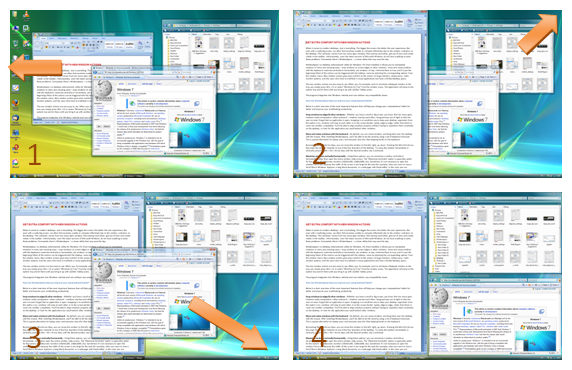
WindowSpace is a powerful desktop enhancement utility for Windows OS. Once installed, it allows you to manipulate windows in many new amazing ways – snap windows to the screen edges and other windows, move and resize them with keyboard shortcuts, maximize vertically or horizontally, pin on top of the other windows, hide from view, minimize to tray, and it’s just the beginning!
Here is the list of the most noticeable improvements in WindowSpace 2 beta:
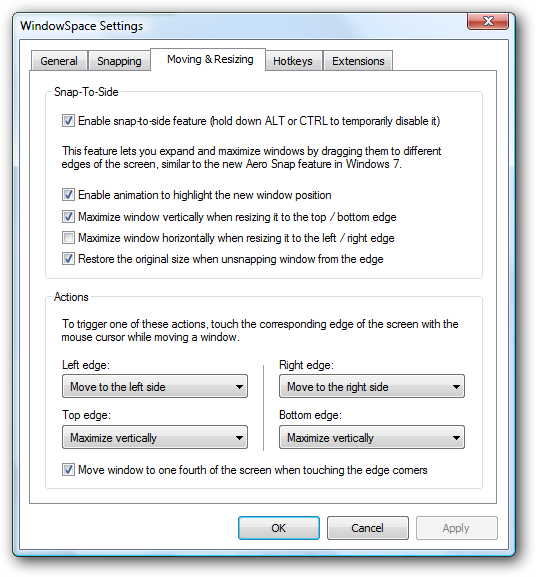
Snap-To-Side (similar to the new Aero Snap feature in Windows 7)
Resizing to the edge:
Unsnapping window from the edge, restores its original size. As in the previous version of WindowSpace, you can also right-click the Maximize button to do this.
Roll Up / Unroll windows
Updated menu commands
20+ hotkeys to manage windows
Snap windows to grid lines
Snap-To-Corners: (currently it is called "Move window to one fourth of the screen when touching the edge corners", Settings -> Moving & Resizing page)

As for "Snap-To-Side" and "Maximize Vertically", unsnapping window from the edge restores its original size.

WindowSpace v2.0 Beta works under Windows 2000/XP/Vista, 32-bit and 64-bit.
Download Link
Homepage

XPize: GUI Enhancer for Windows XP & Server 2003

XPize is a utility program for Windows XP (both 32-bit and 64-bit) and Windows Server 2003 (32-bit and 64-bit) that replaces most of the bits in Windows that didn't match XP's style with bits that do.
The software contains no spyware or adware, it is also easily uninstallable.
XPize does not replace any files, system or otherwise. Instead it "patches" the files by replacing the old resources inside the files.

Download Link
Screenshots
Homepage

WinSplit Revolution: Another Freeware to Get Windows 7 “Aero Snap” Feature in XP and Vista

WinSplit Revolution is a small utility which allows you to easily organize your open windows by tiling, resizing and positioning them to make the best use of your desktop real estate.
WinSplit is especially useful for high-end LCD screens with high resolutions because it helps you to efficiently manage many active windows. The advantages of using WinSplit is that it saves you from having to drag and drop windows by allowing you to snap windows into specific tiled configurations using simple keyboard hotkeys.
Features List:
  • Automated window handling (resize, move, reorganize, close tasks)
  • Shape - process association
  • Global hotkeys and clickable virtual numpad
  • Automatic startup
  • Automatic update
  • Moving a window with mouse (drag'n'go)
  • Hotkey configure
  • Layout configure
  • Fusion between 2 windows
  • Minimize/Restore by hotkey
  • Mosaic mode
It supports Windows 2000, XP and Vista 32 and 64-bit versions. You can download it using following link:

Une Donation Mal Venue De L'union Europeenne Au Cameroun

En début janvier dernier l'Union Européenne a re- soulevé le débat sur les mœurs au Cameroun en accordant 200 millions de fr CFA a l'association sid'ado pour la défense des homosexuels au Cameroun. Ce geste de cette institution a remis en scène la polémique sur la libéralisation de a pratique de l'homosexualité au Cameroun. En effet il faut rappeler qu'en mars 2009 lors de la ratification par  le Cameroun du protocole de Maputo qui tend à légaliser l'homosexualité et l'avortement, la critique s'était vivement opposé à cette décision qui non seulement est contraire aux mœurs et valeurs culturelles camerounaises  en particulier et africaines en général, mais surtout  contraire à la loi pénale camerounaise  qui réprime ce penchant sexuel dans son article 347bis issu de l'ordonnance No 72/16 du 28 septembre 1972. Les dispositions de ce article punissent la pratique de l'homosexualité d'une peine d'emprisonnement de 6 mois à 5 ans et  d'une amende de 20 milles  à 200 milles fr CFA.
La polémique en raison de cette ratification avait été tellement forte non seulement à cause de la desaprobation des diverses couches sociales, la presse, la société civile mais surtout de l'église notamment la communauté catholique qui avait en plus effectuée une marche pacifique contre cette ratification, avec à sa tête le cardinal Christian Tumi.
Cette donation de l'Union Européenne  qui pour une fois n'est pas moins des plus mal  venues au Cameroun à réanimé le débat au sujet de cette légalisation de la pratique homosexuelle. Le ministre camerounais des relations extérieures Monsieur EYEBE AYISSI Henri qui a reçu ce jeudi 15 janvier le représentant permanent de l'Union Européenne au Cameroun Monsieur Raoul Mateus Paula signifiant clairement la position du gouvernement camerounais sur l'homosexualité ; celle que la pratique homosexuelle est interdite au Cameroun par la loi pénale et contraire aux valeurs chères au peuple camerounais. Au sortie de cette rencontre on pouvait lire clairement sur le visage et dans l'interview de Monsieur Mateus un embarras assez révélateur de l'acuité qu'a dû être son entretien avec le ministre camerounais. Dans tous les cas. Il a été précisé par la partie camerounaise que l'homosexualité ne saurait être normale au Cameroun ; que le pays tient fermement à ses valeurs  sociaux -culturelles et morales. De son coté, M Raoul Mateus  dans son interview par la presse a essayé de justifier cette donation en précisant qu'il est dans les objectifs de l'Union Europeenne d'apporter son soutien à la défense des droits de l'Homme  partout ou besoin se ressent,y compris celui des homosexuels. Cette explication échappatoire qui n'est pas des plus  sensés aurait pu sous-entendre que les homosexuels au Cameroun sont recherchés et persécutés de tous les manières imaginables, ce qui n'est pas le cas car  en tant qu'Etat de droit, le Cameroun ne réprime cette pratique sexuelle que par la voie pénale, ce qui présuppose la culpabilité  du mis en cause, tout comme il n'a jamais été établi qu'un homosexuel confirmé ou présumé ait déjà subi la vindicte populaire au cameroun. Dans tous les cas cette donation soulève aussi deux questions de fond : premièrement celle de savoir  sur quelle base cette institution se fonde pour commettre ses agissements ? .il semble  à cette vue qu'elle ne prend ni la peine de vérifier la conformité de son action aux lois et règlements en vigueur dans l'Etat en cause ; ni la légalité des organismes bénéficiaires ainsi  que leur capacité a recevoir des libéralités ; ni l'accord officiel du gouvernement concerné. Deuxièmement  quel est l'avenir  de ladite  somme après le désaveu de la partie camerounaise ? Si l'on s'en tient  à la position de la partie camerounaise, l'Union Européenne  ne peut que se voir dans l'obligation de récupérer ses fonds ou encore changer officiellement la cause de sa donation. Le Cameroun reste dans l'attente de sa décision qui si l'on en croit l'opinion publique, ne peut être que le retrait des fonds alloués, sous risque  d'aggraver cet incident diplomatique.

Rechargeable Batteries

Scientists report progress in using a common virus to develop improved materials for high-performance, rechargeable lithium-ion batteries that could be woven into clothing to power portable electronic devices. They discussed development of the new materials for the battery's cathode, or positive electrode, at the 240th National Meeting of the American Chemical Society (ACS), being held in Boston.
These new power sources could in the future be woven into fabrics such as uniforms or ballistic vests, and poured or sprayed into containers of any size and shape, said Mark Allen, Ph.D., who presented the report. He is a postdoc in Angela Belcher's group at the Massachusetts Institute of Technology (MIT). These conformable batteries could power smart phones, GPS units, and other portable electronic devices.
"We're talking about fabrics that also are IBM Laptop Battery such as IBM ThinkPad A20 Battery, IBM ThinkPad A20M Battery, " Allen said. "The batteries, once woven into clothing, could provide power for a range of high-tech devices, including handheld radios, GPS devices and personal digital assistants. They could also be used in everyday cell phones and smart phones."
Batteries produce electricity by converting chemical energy into electrical energy using two electrodes -- an anode and cathode -- separated by an electrolyte. At the ACS meeting, Allen described development of new cathodes made from an iron-fluoride material that could soon produce lightweight and flexible batteries with minimal loss of power, performance, or chargeability compared to today's rechargeable power sources.
Allen has extended ground-breaking work done last year by MIT scientist Angela Belcher and her colleagues, who were the first to engineer a virus as a biotemplate for preparing lithium ion battery anodes and cathodes. The virus, called M13 bacteriophage, consists of an outer coat of protein surrounding an inner core of genes. It infects bacteria and is harmless to people.
"Using M13 bacteriophage as a template is an example of green chemistry, an environmentally friendly method of producing the battery," Allen said. "It enables the processing of all materials at room temperature and in water." And these materials, he said, should be less dangerous than those used in current lithium-ion batteries because they produce less heat, which reduces flammability risks.
The Belcher Biomaterials group is in the beginning stages of testing and scaling up the virus-enabled battery materials, which includes powering unmanned aerial vehicles for surveillance operations. Making light-weight and long-lasting batteries that could result in rechargeable clothing would have several advantages for both military personnel and civilians, Allen added.
"Typical soldiers have to carry several pounds of batteries. But if you could turn their clothing into a battery pack, they could drop a lot of weight. The same could be true for frequent business travellers ― the road warriors ― who lug around batteries and separate rechargers for laptop computers, cell phones, and other devices. They could shed some weight."

Blue Screen Solutions of Vista

If you are computer buff, and have been working on the computers for some time, you will be familiar with the computer freezing, crashing occasionally and giving you poor performance. If you encounter such situations, you cannot neglect them, as they can cause serious damage to the computer.So, how can we solve thecomputer freezing?
Step 1 - Disabling rebooting facilities
First and foremost step in the process is disabling the rebooting facilities so that after appearance the blue screen stays there and displays all the error messages.
Step 2 - Right Click on Computer Icon
Right clicking on the computer icon will lead the Windows 7 users to the system property screen where one should choose advance system setting feature. Select and click on "start up and recovery" option. Also uncheck the automatic restart option in the check box.
Step 3 - Write down the error messages
Once the above steps are taken it would be necessary writing down or recording the error messages displayed on the screen. Since the automatic reboot option is disabled, it will be necessary to reboot the computer manually.
Step4 . Use a registry cleaner.
Errors in the registry of the computer are generally cleaned by the registry cleaner. Information about games, applications, drivers and software present in your computer is stored in the registry. Certain obsolete entries can result in the appearance of the blue screen of death as the registry tends to get corrupted over a long period of usage. A registry cleaner is of immense help here. The blue screen of death can be removed with the help of the registry cleaner which will set right the errors thereby making your computer speedy. This also ensures applications are loaded faster

Read more: http://www.articlesbase.com/software-articles/blue-screen-solutions-of-vista-4048850.html#ixzz1BOmSLyJD
Under Creative Commons License: Attribution

Of Bike Games and Dart Games

For a majority of people, to have the confindence to do tons of death defying stunts and some tricks on a bike is a big risk and something that they believe thet cannot do. However, that never stops from wishing that they too could do those stunts whenever they see the pros do a particularly fancy trick. This is what happens for dirt bike riding since folks are not too keen on the many risks that they must take and also they should practice day in and day out just so they can improve.
Face it, riding a motorcycle is really a dream that a lot of people have but something that they never actually act on since it is very risky. But there a might be an easy method that you could do these items and not have to worry that you'll break an arm, or, if you are seriously unlucky, your neck. You can play bike games online so you could get some of the thrill that you want to get from bike riding. You might however, come up with the argument that this is a very poor substitute for the actual feeling of riding a motorcycle and while that could be true, you will still get a different sort of thrill from these games.
You can play games that will challenge you and will let you go and join some high-speed races with other speed devils and there are some bike games where you travel through some rather rough terrain. Just give them a try and you might be surprised at how much you actually like the bike games. if after playing the games you still feel that they will not do it for you, go and play some dart games as an alternative to the bike games? The dart games are very alike to the dart games you play in real life so you will not feel cheated. If the bike games experience was truly a let down, let the dart games cheer you up.. If these games are interesting to you, look for them when you might be online and while you are at it, check out other fun games you could play absolutely free.


Remove Disk Defragmenter, How To Remove Disk Defragmenter

Disk Defragmenter (aka DiskDefragmenter) is one more scam application representing the family of fake optimizers that has been exhibiting rapid growth during the last months. Disk Defragmenter is a harmful rogueware will devastate your PC in its campaign to fleece you out of your money. Disk Defragmenter pretends to scan your computer for system errors the moment when you log in the desktop and generates a report claiming that your system has a lot of errors which doesn’t exist at all. Disk Defragmenter infection include users being denied access to their Desktop items, as well as the inability to launch legitimate executables. Make sure you ignore them because they will only lead you to falling into the scam and losing your money. Disk Defragmenter must be got rid of from your computer ASAP to keep your computer from threat.

“Disk Defragmenter should be removed as early as possible. Click the “Remove this infection” button to download Disk Defragmenter removal tool.”
Download Spyware Doctor

Unable To Download The Removal Tool, Please Follow The Steps Given Below
“Please don’t forget to make a note of this website address, bookmark it or to take a printout as you may have to restart the computer when following the steps given below”
1. You need to restart your computer in “Safe Mode with Networking.” To do so, please restart your computer. As your computer restarts but before Windows launches, tap “F8″ key constantly. Use the arrow keys to highlight the “Safe Mode with Networking” option and then press ENTER. If you don’t get the Safe Mode with Networking option, please restart the computer again and keep tapping “F8″ key immediately.
2. Open Internet Explorer >> Click on Tools >> Click on Internet Options >> In the the Internet Options window click on the Connections tab >> Then click on the LAN settings button>> Uncheck the check box labeled “Use a proxy server for your LAN” under the Proxy Server section and press OK.
3. Click the below link to Download and Run Spyware Doctor to remove Disk Defragmenter.
Spyware Doctor delivers powerful protection against spyware and adware threats.
http://techtalks.pctools.revenuewire.net/sd/download to remove Disk Defragmenter.
Download Spyware Doctor
(# If you are unable to run the given Spyware Doctor, please Rename the Spyware Doctor file name to 1234.exe while saving it and then run it)
Disk Defragmenter Infection Symptoms
* Google, Yahoo Searches are redirected. Desktop background image and Browser homepage settings are changed. This is a common symptom of a very serious Disk Defragmenter infection.
* Disk Defragmenter slows down your computer considerably and you will feel like your computer is stuck. This includes opening programs, shutting down your computer, and slow Internet.
* You will get many unwanted pop ups. Disk Defragmenter corrupts your windows registry and uses it to deploy annoying pop up ads out of nowhere.
How Dangerous is Disk Defragmenter Infection
This infection will change your registry settings and other important windows system files. If Disk Defragmenter is not removed it can cause a complete computer crash.
Some Disk Defragmenter infections contain trojan and keyloggers which can be used to steal sensitive data like passwords, credit card, bank account information etc. So it is very important to remove Disk Defragmenter as early as possible before it steals your information.
How To Remove Disk Defragmenter Manually
Manual removal of Disk Defragmenter Spyware is a difficult task, we recommend you to use our Automatic Spyware removal tool. This is a safe and easy method. Download Spyware Doctor to automatically remove Disk Defragmenter.
* Stop Disk Defragmenter process using the windows task manager.
* Uninstall Disk Defragmenter program from windows control panel Add/Remove Programs.
* Open windows registry using regedit.exe command. Find and Remove all Disk Defragmenter Registry Files.
* Search for Disk Defragmenter Files on your computer and delete it.
Tags: Disk Defragmenter removal, How to get rid of Disk Defragmenter, How to remove Disk Defragmenter, Delete Disk Defragmenter, Uninstall Disk Defragmenter
Please, be informed that manual removal of Disk Defragmenter malware is a cumbersome procedure and does not always ensure complete deletion of the Disk Defragmenter, since some files might be hidden or may automatically reanimate themselves later.
Download Spyware Doctor to automatically remove Disk Defragmenter.

Remove Disk Helper

What is Disk Helper?

Disk Helper is a rogue anti-spyware program. It means Disk Helper is a fake application which pretends itself as a anti-spyware software. The design and looks of Disk Helper software is exactly same as that of a genuine anti-spyware software. But in reality Disk Helper is just a waste application designed to show you fake security warnings and pop-ups.

If you have intentionally or unintentionally installed Disk Helper rogue program, then you should remove it as early as possible. If not Disk Helper will annoy you by showing fake security warning and pop-ups. You will get many security warnings which says "Warning spyware detected on your computer" and it will force you to buy paid version of the fake software to remove the spyware infection. You should not fall in to this trap. All these security warnings Disk Helper shows are fake just to scare you. Disk Helper will disable most of the windows features and will use most of your computer resources. This will make your computer to operate very slow.

How To Remove Disk Helper

You can manually remove Disk Helper files from your computer only if you are expert in editing windows registry files. You need to manually remove all the Disk Helper infected registry entries. Editing registry entries are recommended only for advanced users as your computer may crash if you delete any windows operating system registry files.

One other easy and safe method is to run Spyware Removal tools to remove Disk Helper. This method will scan your computer for any Disk Helper infections and will delete all the infected files automatically. It is better to run the spyware removal tools two times to make sure all the infections are deleted.

Click the following link to learn how to download Spyware Removal tool to Remove Disk Helper Program and to perform Disk Helper removal.

Reimage Repair Honest Review - Does it really Work That Fast and Fix Your PC Like New? Shocking News!

Reimage Repair Honest Review - Does it really Work That Fast and Fix Your PC Like New? Shocking News!


Is your Operating System running way too sluggish? Are you trapped by unwanted pop-ups or having viruses spreading around your desktop? If so then Reimage Repair is something you definitely want to check out. This program Reimage is an online service that repairs your computer automatically by scanning and analyzing then replacing malfunction components with the new ones and sets your operating system back to original by rebooting it after successful completion of a short process. I explain how Reimage revives the stability of your computer, the benefits it brings to your O.S. and the pricing plans that is possibly right for you. By the end of this review, you will have a very clear idea of what Reimage PC repair is all about.


How Exactly Does Reimage Work?
Based on you computer's specification, the entire scanning and repair process takes approximately No Longer Than 45 Minutes which are divided in 4 steps which are as listed below:
  1. Scanning and analyzing the computer system. This is the part where the online application is finding out the faults and damaged components so that it knows where and what it actually needs to repair.
  2. Once the bad redundant components have been identified, the next step is to have these bad clutters removed from your computer. Every computer brings in different sorts of damages and with more than 25 million files being stored in Reimage online application, the scanning progress will have more than enough components to replace the bad clutters with the new ones.
  3. Once the exact bad files have been located, then this is where the repairing process starts by getting the missing parts from the repository.
  4. As the process of fixing bad clusters is completed, the operating system will be rebooted once again and the next thing you see is your Window XP is up and running like a new computer.

Product Features:
This online service is successful in providing a solution to unhealthy personal computers and brings back the healthy condition that every operating system deserves. Reimage has successfully conquered the problem by addressing all of these issues, no matter how new or old your Windows XP is. During the scanning and repairing process, it only detects the missing or damaged parts so that it knows exactly what to fix and the rest of the healthy clutters remain untouched.


To Conclude:
I am sure, by now, you know how beneficial Reimage Computer Repair can be for your computer operating system. It works for both business and home personal use saving you great amount of time and energy. It uses a huge database or repository of over 25 million components of system files to compare to those which are missing or corrupt on your system. Get your Reimage Performance Scan and evaluate your PC's performance.